🌟 1. Data & Information
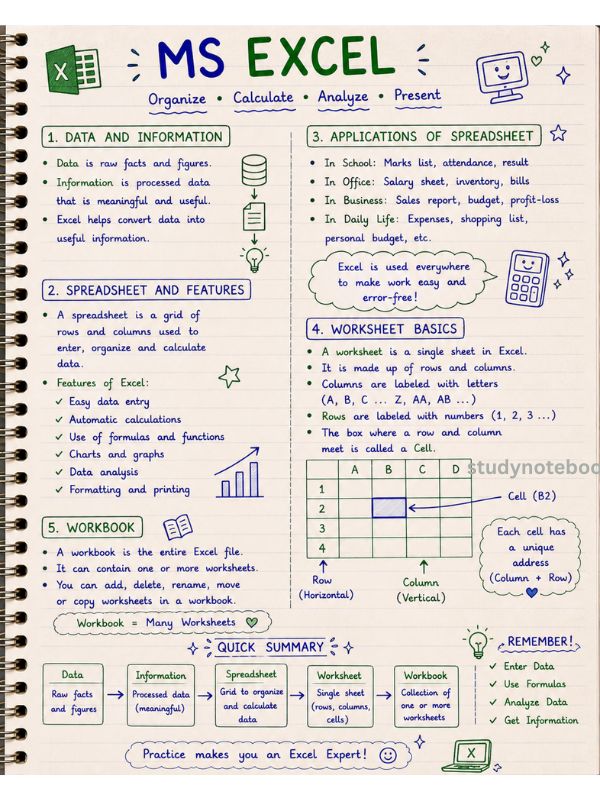
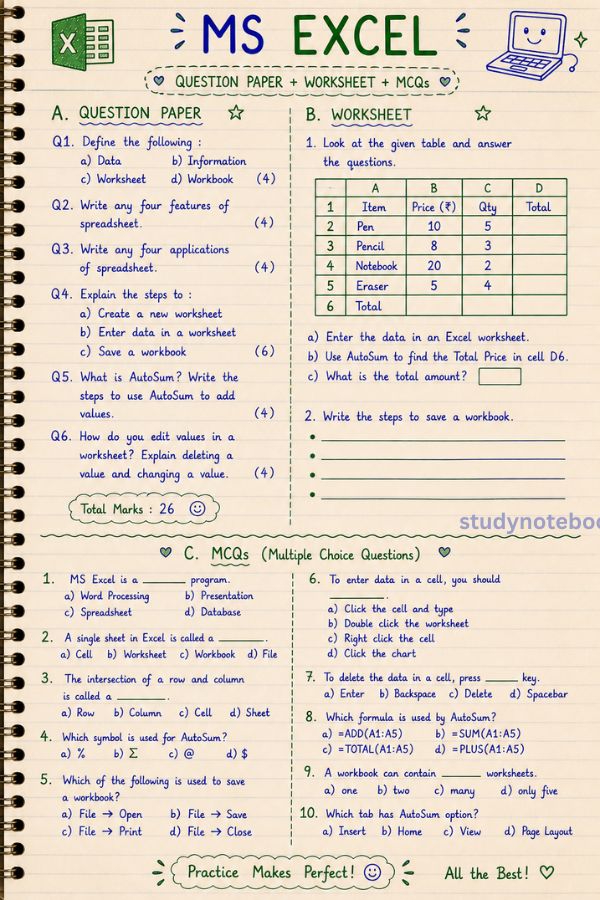
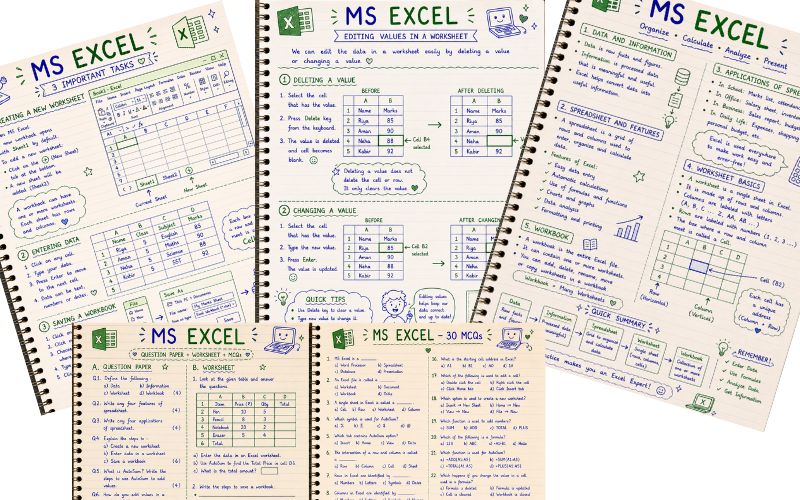
- Data = Raw facts (numbers, text, symbols)
👉 Example: 10, Rahul, ₹500 - Information = Processed data (meaningful result)
👉 Example: Total marks, salary report
💡 Trick:
👉 Data = Input
👉 Information = Output
📊 2. Spreadsheet & Its Features
🟢 What is a Spreadsheet?
- A spreadsheet is a grid of rows & columns
- Used to store, organize & calculate data
👉 Example: MS Excel
✨ Features of Spreadsheet
- ✔️ Fast calculations
- ✔️ Easy data storage
- ✔️ Formulas & functions
- ✔️ Charts & graphs
- ✔️ Data sorting & filtering
💡 Memory Tip:
👉 Excel = Store + Calculate + Analyze
🧾 3. Applications of Spreadsheet
- 📊 School marks sheet
- 💰 Salary calculation
- 🛒 Billing system
- 📈 Business reports
- 🏦 Banking records
👉 Used in schools, offices, banks, shops
📘 4. Worksheet Basics & Workbook
🟢 Workbook
- A file in Excel
- Contains multiple worksheets
👉 Like a book 📚
🔵 Worksheet
- A single sheet inside the workbook
- Made of rows & columns
👉 Like a page 📄
📌 Important Terms
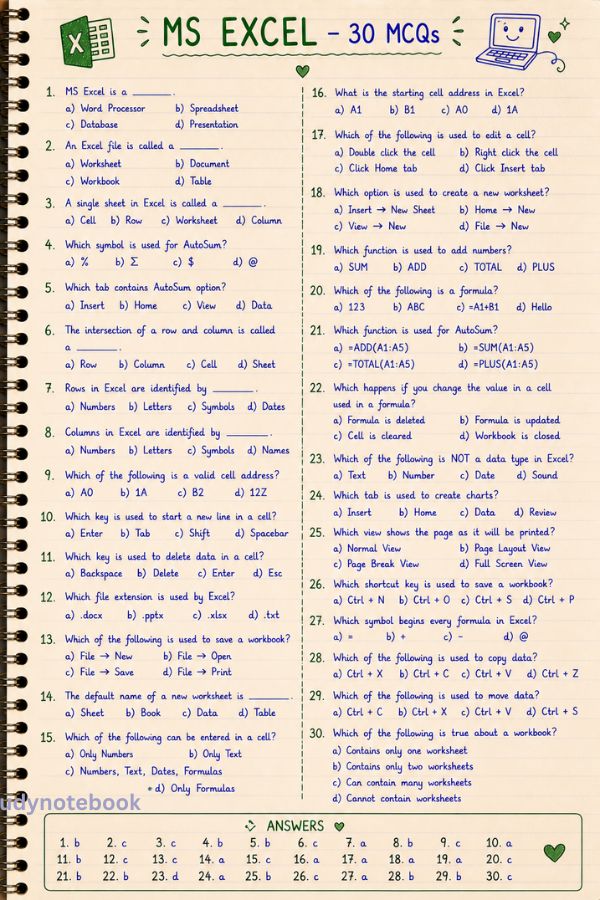
- Cell = Box (A1, B2)
- Row = Horizontal (1,2,3…)
- Column = Vertical (A, B, C…)
💡 Example: A1 = Column A + Row 1
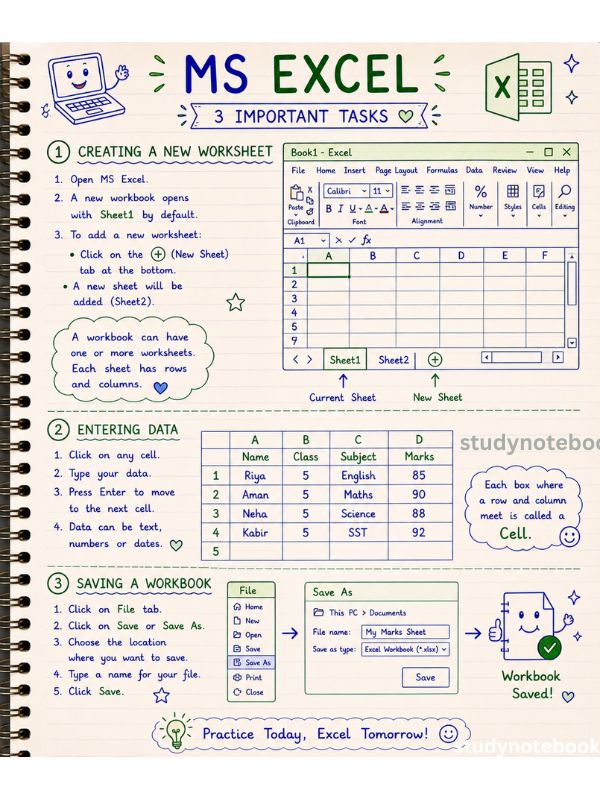
➕ 5. Creating a New Worksheet
Steps:
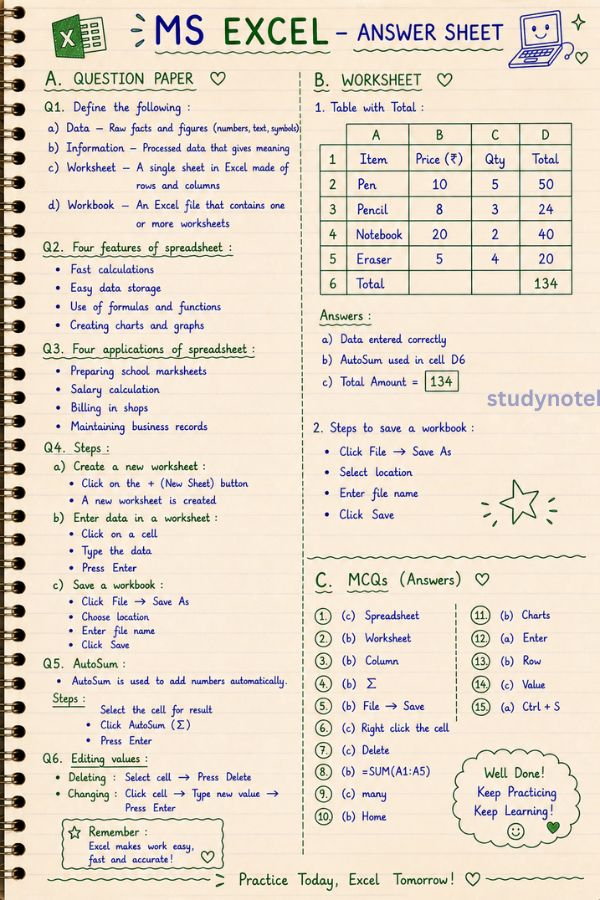
- Click on + (New Sheet button)
- A new sheet will appear
👉 You can rename it by double-clicking the sheet name
🖥️ 6. Excel Window (Main Parts)
- Title Bar
- Ribbon (Home, Insert, etc.)
- Formula Bar
- Worksheet Area
- Sheet Tabs
💡 Tip:
👉 Ribbon = Tools area
✍️ 7. Entering Data in Excel
Steps:
- Click on any cell
- Type data (text/number)
- Press Enter
👉 Data can be:
- Text
- Numbers
- Dates
💾 8. Saving a Workbook
Steps:
- Click File → Save As
- Choose location
- Enter file name
- Click Save
💡 Shortcut: Ctrl + S
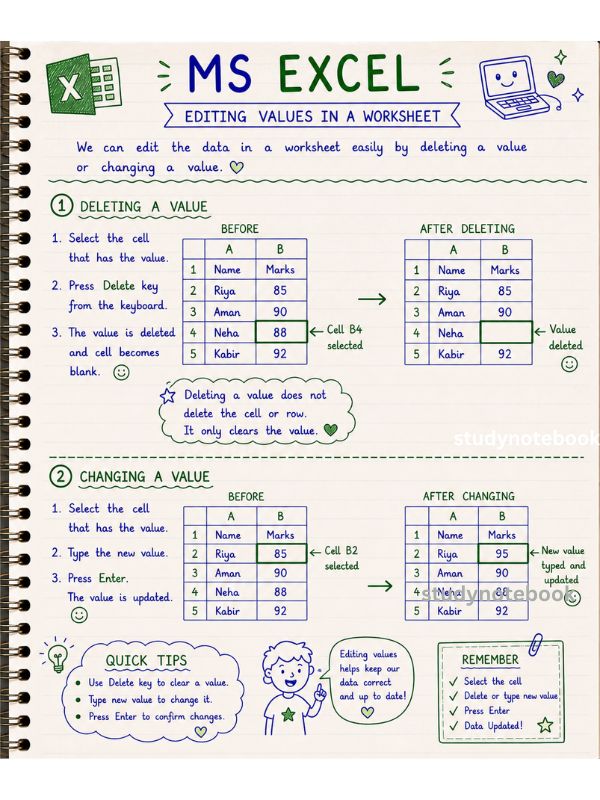
✏️ 9. Editing Values in Worksheet
🗑️ Deleting Data
- Select cell → Press Delete
🔄 Changing Data
- Click cell → Type new value → Press Enter
💡 Tip:
👉 Always double-check before deleting!
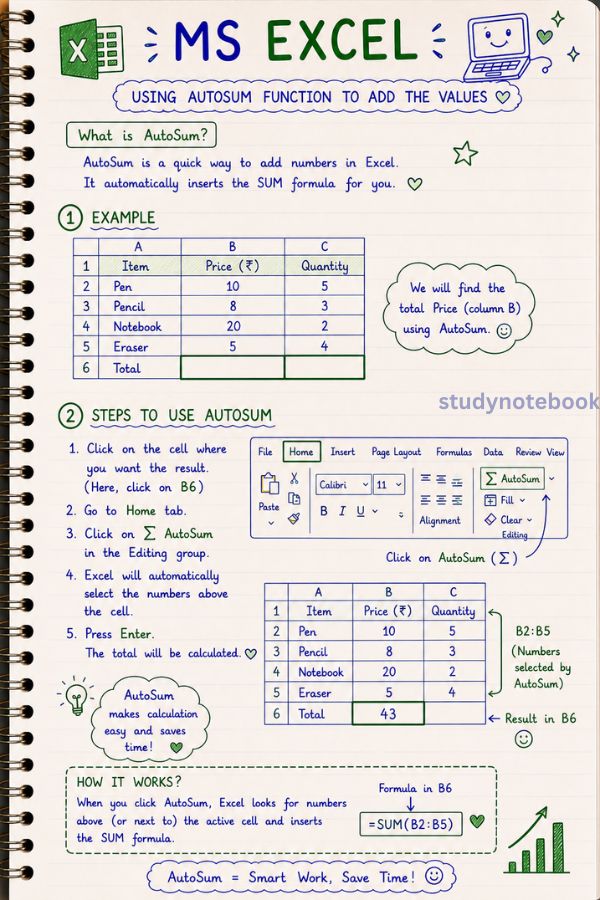
➕ 10. Using the AutoSum Function
🌟 What is AutoSum?
- A quick way to add numbers automatically
📊 Example:
10 + 20 + 30 = 60
Steps:
- Click on the result cell
- Click AutoSum (Σ)
- Press Enter
📌 Formula Used:
👉 =SUM(A1:A5)
👉 AutoSum = Automatic Addition
🧠 FINAL QUICK REVISION
💚 Workbook = File
💙 Worksheet = Sheet
💚 Cell = Box
💙 Data = Raw
💚 Information = Result
👉 Excel = Store + Calculate + Analyze Data