📘TABLE & CREATING A TABLE
💙 What is a Table?
- A table is made of rows (horizontal) and columns (vertical)
- Used to organize data neatly
👉 Example: Marks table, timetable, list, etc.
💚 Steps to Create a Table
- Click on the Insert tab
- Click on Table
- Select the number of rows & columns
- Click → Table is created!
✨ Shortcut Trick:
Drag your mouse over boxes → quick table ready!
💡 Quick Tip
👉 Tables help make your work:
- Clean ✔️
- Easy to read ✔️
- Well organized ✔️
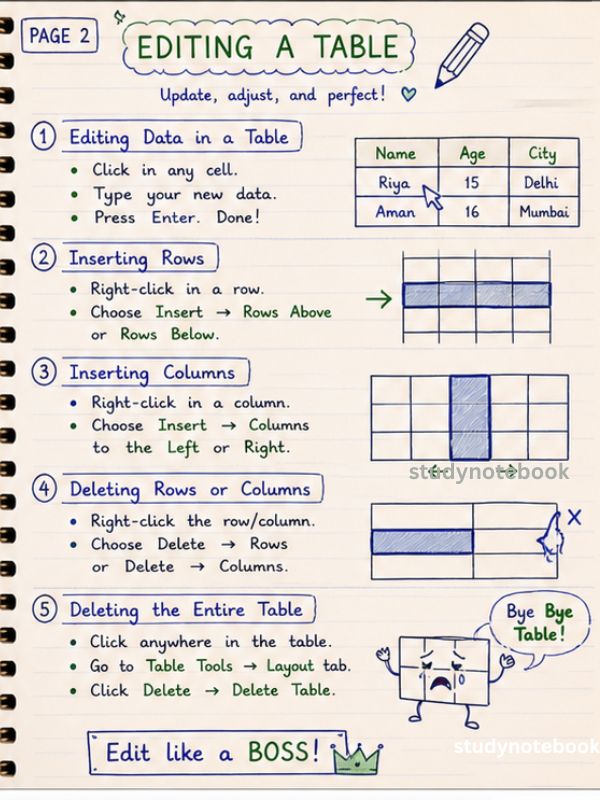
📘EDITING A TABLE
💙 1. Editing Data
- Click inside any cell
- Type or delete text easily
💚 2. Inserting Rows
- Click inside a row
- Go to Layout tab → Insert Above / Below
💚 3. Inserting Columns
- Click inside a column
- Go to Layout tab → Insert Left / Right
💙 4. Deleting Rows/Columns
- Select row/column
- Click Delete → Delete Rows / Columns
💚 5. Deleting Entire Table
- Click anywhere in the table
- Go to Layout → Delete → Delete Table
💡 Easy Memory Trick
👉 Edit → Insert → Delete
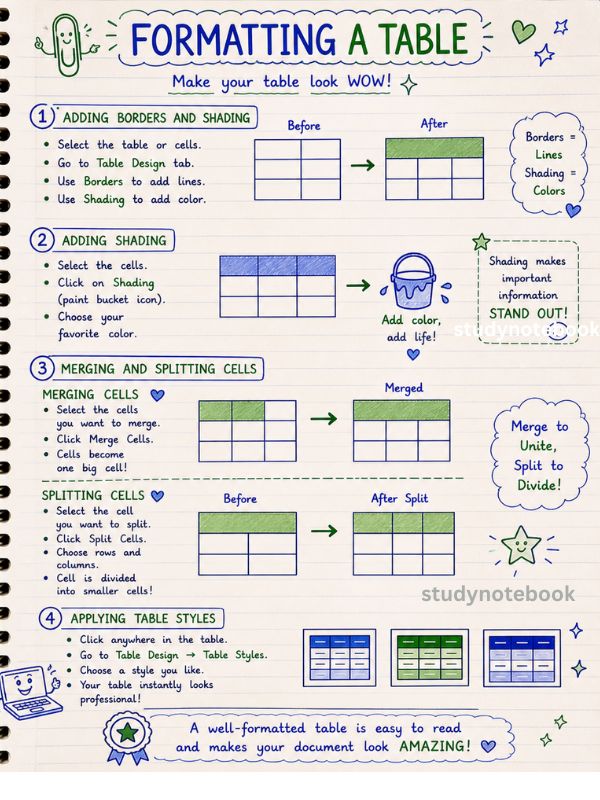
📘FORMATTING A TABLE
💙 1. Adding Borders & Shading
- Select table
- Go to Table Design
- Use:
- Borders = lines
- Shading = colors
💚 2. Adding Shading
- Select cells
- Click Shading (paint bucket)
- Choose color 🎨
👉 Makes the table look attractive!
💙 3. Merging Cells
- Select cells
- Click Merge Cells
👉 Many cells → ONE big cell
💚 4. Splitting Cells
- Select a cell
- Click Split Cells
👉 One cell → MANY small cells
💙 5. Applying Table Styles
- Click inside the table
- Go to Table Design → Table Styles
- Choose a style
👉 Instantly makes table look professional ✨
💡
👉 Borders + Colors + Merge + Split + Styles = Perfect Table
⭐
👉 Table = Rows + Columns
👉 Create = Insert → Table
👉 Edit = Add / Delete
👉 Format = Design & Style